Welcome to our Help Center.
Our Help Center is designed to give you a place to get the information you need to be effective at using our site.
You can find information by browsing the sections and categories on the left hand dropdown menu (top if you have a very small screen)
We appreciate any feedback regarding the design of the help center, or new bits of information to add, including tutorials; You can open a ticket with us at any time.
Getting Started: Basics
Getting Started: For Renters
Getting Started: For Rig Owners
Getting Started: Tutorials
Pool Management for Rentals
Create a Saved Pool Configuration
Create a Profile Configuration
Introduction
Pool Management consists of two parts at MiningRigRentals: Favorite Pools and Pool Profiles.
-
Favorite Pool - An individual record of a mining pool credentials.
-
Favorite Pools are REQUIRED
-
-
Pool Profiles - A set of Favorite Pools that share the same algorithm type.
-
Pool Profile are not required BUT will likely make your mining experience much easier.
-
Pool Configurations
Saved Pool Requirements
Before you create a Favorite Pool, you must gather the following information from the pool provider:
-
Hashing Algorithm - Click HERE to view currently supported Hashing Algorithms.
-
Host - Server endpoint supplied by your pool provider.
-
Pool Hosts are typically supplied using the following format:
stratum+tcp://pool.server:PORT -
Currently, MiningRigRentals only supports stratum+tcp:// pools.
-
-
Pool Username - Depending on the pool, the username may be a Destination Wallet or a Username.
-
Wallet Example: Ae9TJzgua3xQzRChsaTJAtqJYXGQa2WEYZ.mrr
-
Username Example: nickganga.mrr
-
Note: The suffix .mrr is used to identify the worker on the pool. Pool support may vary for this feature. Please check with your pool for compatibility.
-
Pool Password - Depending on the pool, this field may or may not be necessary.
-
Some pools allow you to set variables (such as difficulty) via the password field.
-
Check with your pool operator for variable support in the password field.
-
Create a Saved Pool Configuration
After you have gathered the Pool Information (as described above), it’s time to create the pool record.
-
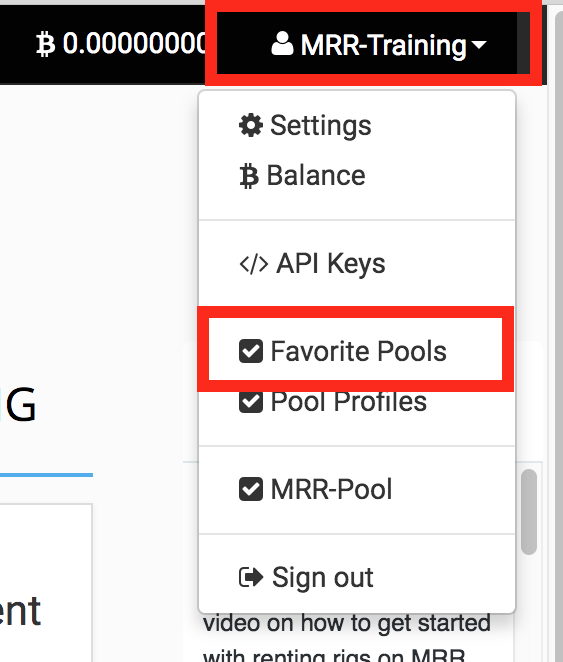
After logging into the MiningRigRentals site, access the DROP DOWN menu from your USERNAME in the top right corner and choose Favorite Pools.
-
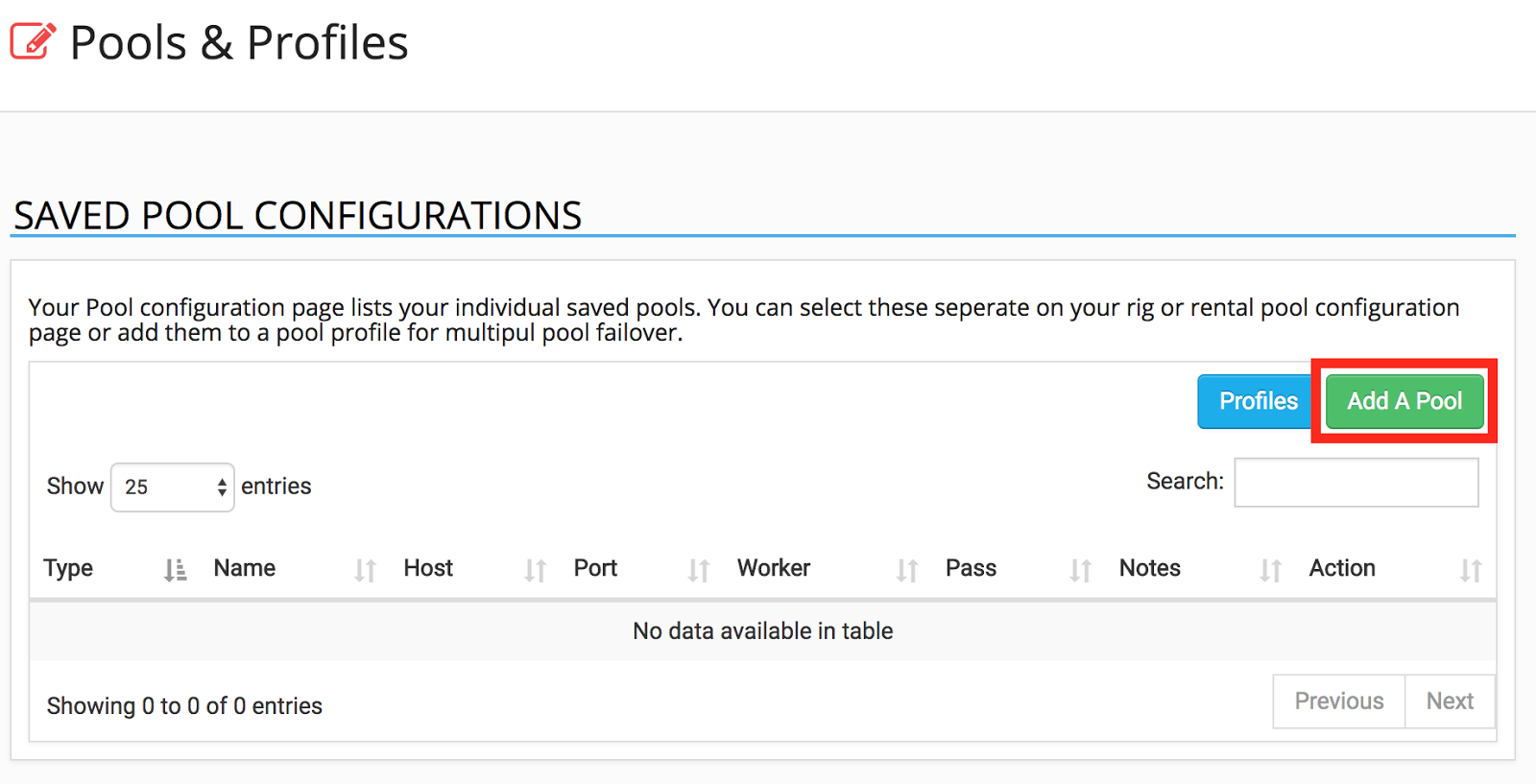
From the Saved Pool Configuration window, choose the green Add a Pool button.
-
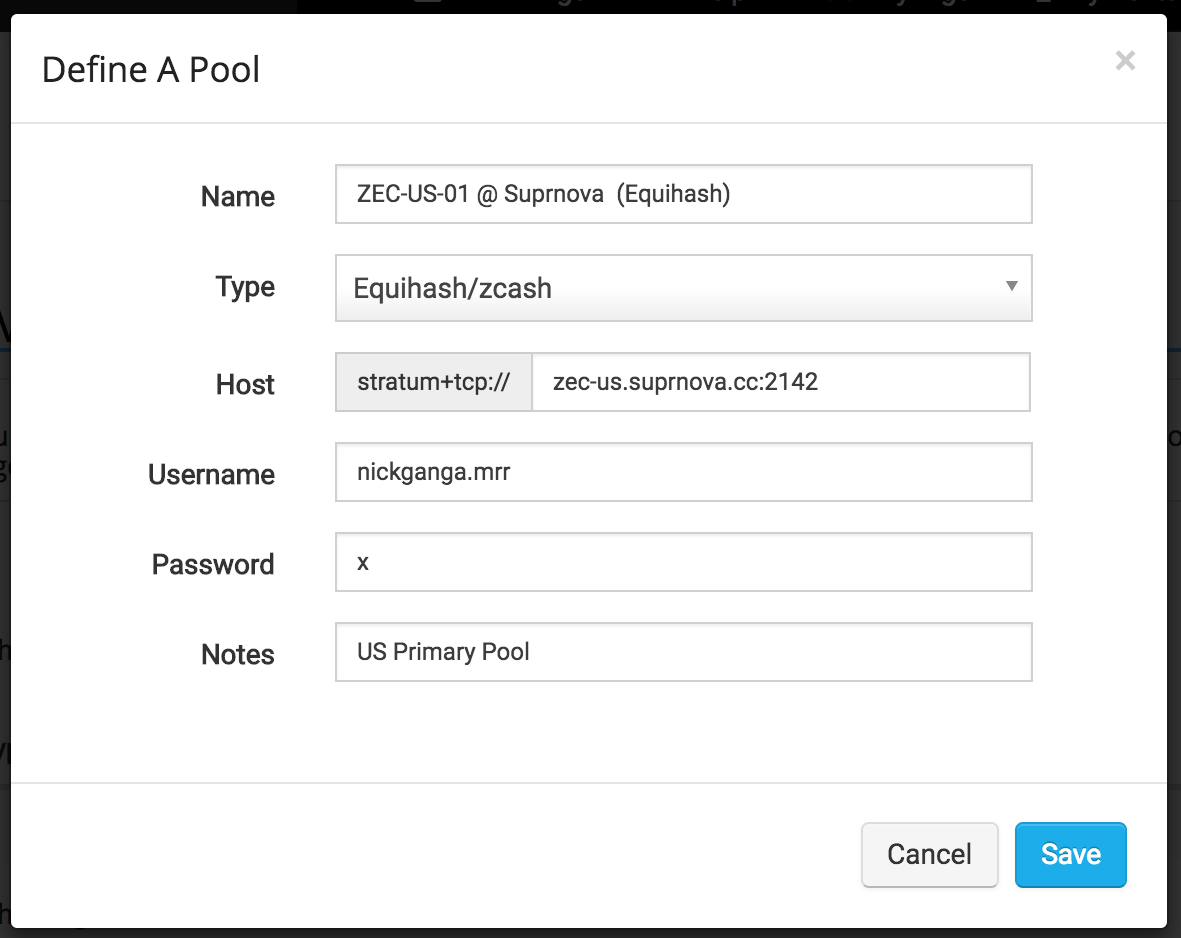
Using the information gathered in the previous step (Saved Pool Requirements) complete the Saved Pool Profile.
In this example, I am creating an entry for mining ZCash on Suprnova.
-
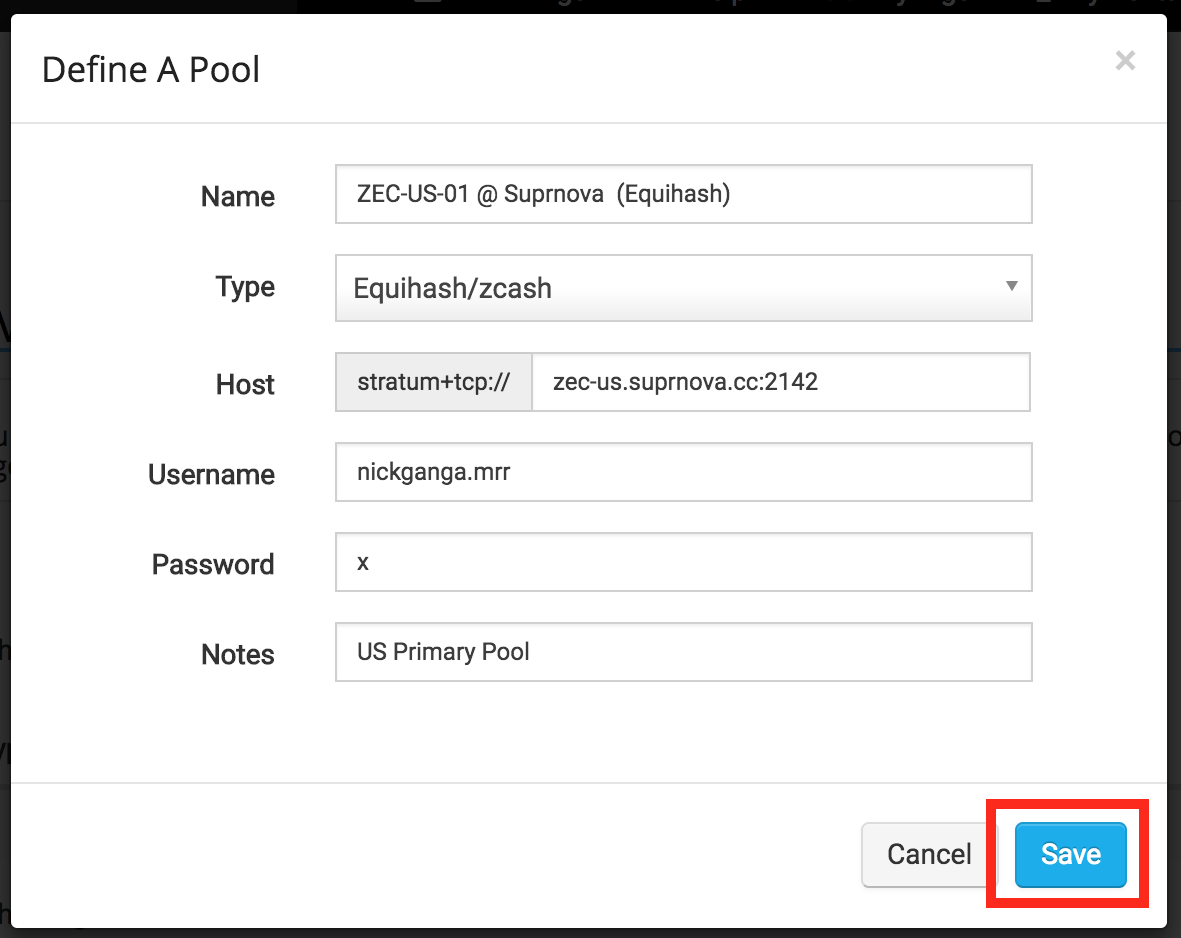
After completing all the required pool fields, choose Save.
-
You will now see the newly created Pool in the list.
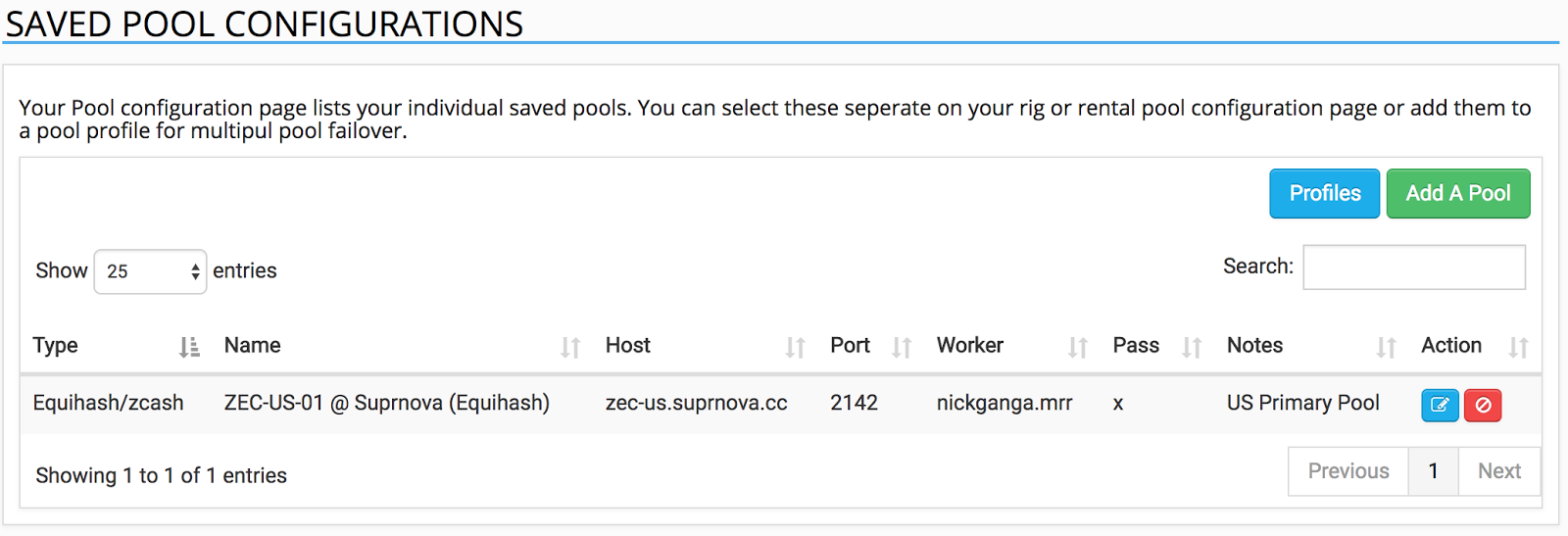
Congratulations, you have just created your first Saved Pool Configuration!
Failover Pools
-
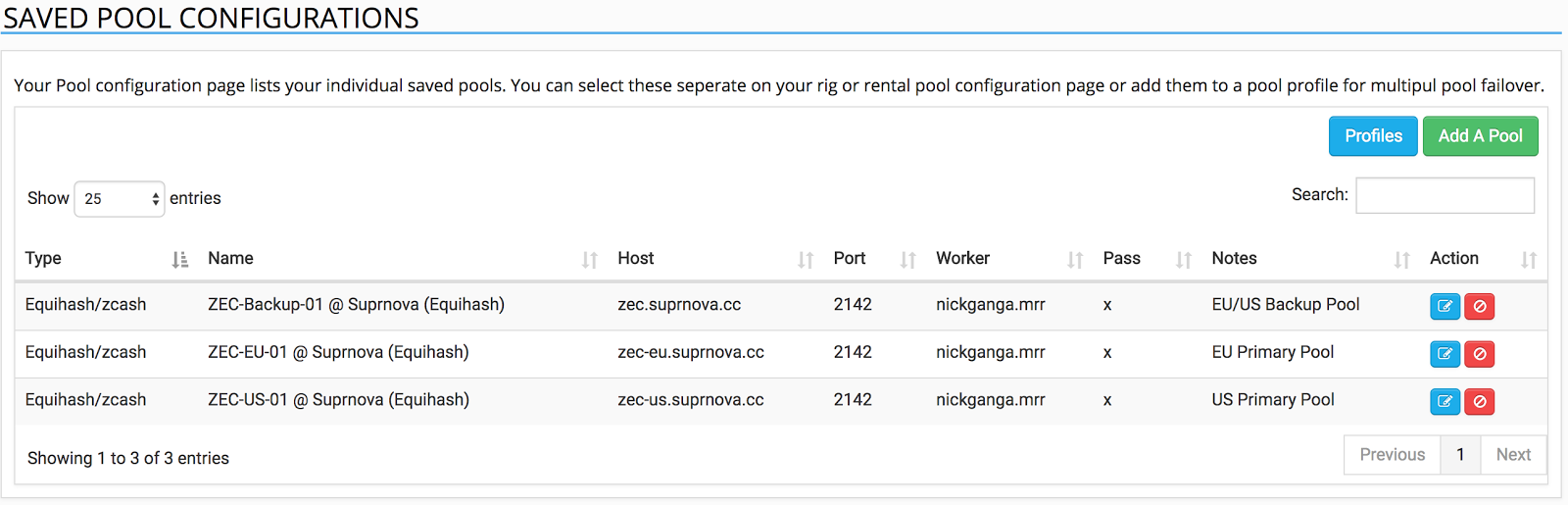
It’s very important to define AT LEAST 2 Pool Endpoints for each pool.
-
Generally, pool operators have multiple Pool Endpoints in multiple geographic regions.
-
Starting from the example from above (Creating a Favorite Pool), repeat the process to create additional Pool Endpoints.
Profile Configs
Create a Profile Configuration
After creating at least 2 Pool Profiles, we can combine two or more Saved Pool Configurations to create a Pool Profile.
-
Navigate to Profiles:
-
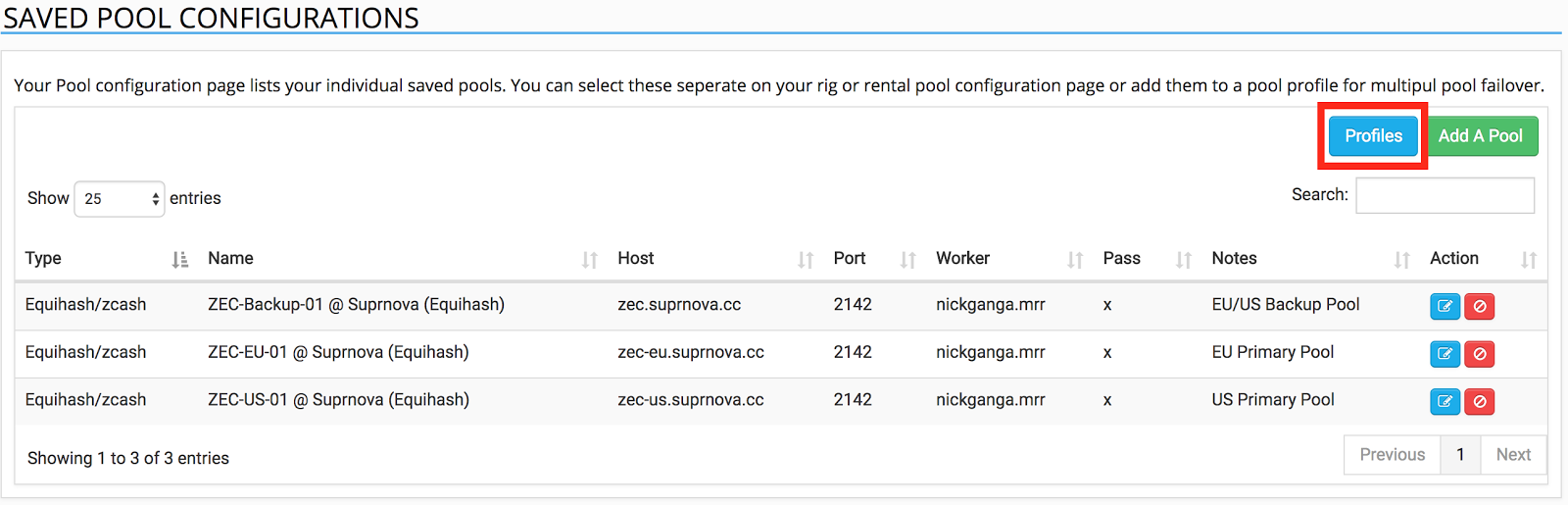
From the Saved Pool Configuration page, choose the blue Profiles button.
-
-
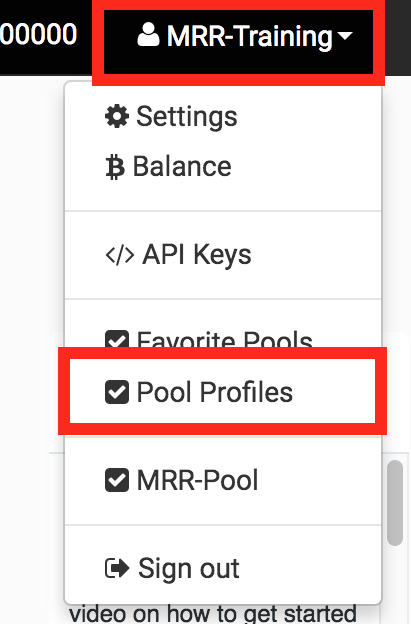
From anywhere else, access the DROP DOWN menu from your USERNAME in the top right corner and choose Pool Profiles.
-
From the Saved Profile Configuration page, choose the green Create New Profile button.
-

-
Provide a name to describe your Saved Profile Configuration, define the hashing algorithm and choose Save.
In this example, I am creating a ZCash Profile for Suprnova.
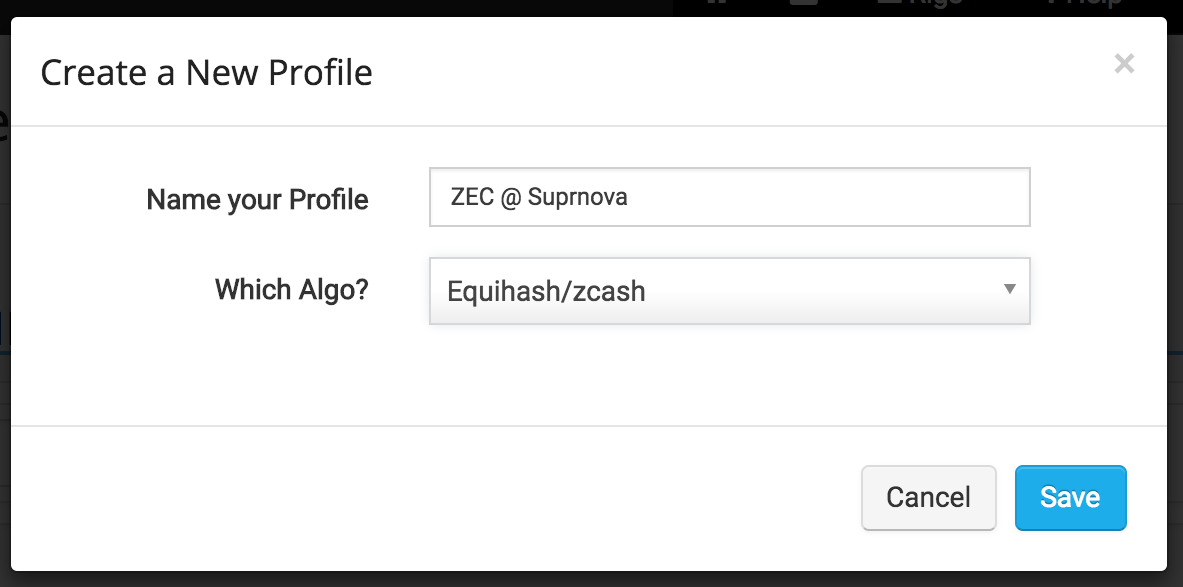
-
Now that a new Saved Profile exists, add all appropriate Pool Configurations (created above) to the Saved Profile.
-
Note: Only Saved Pool Configurations that match the Saved Profile Configurations will appear in this list.
-
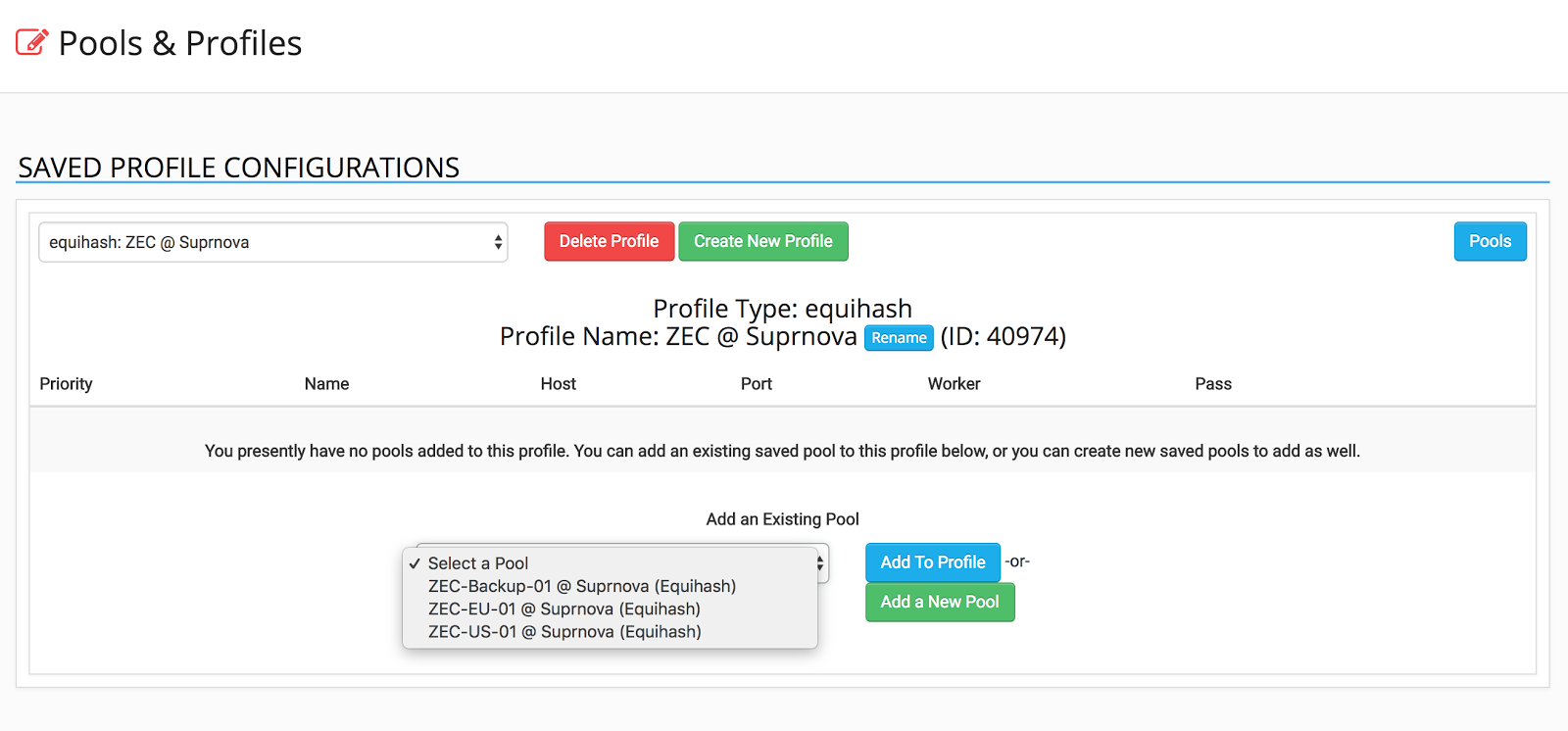
-
After all profiles have been added, use the UP and DOWN arrows to reorder the pool priority. This profile will failover following the order defined here.
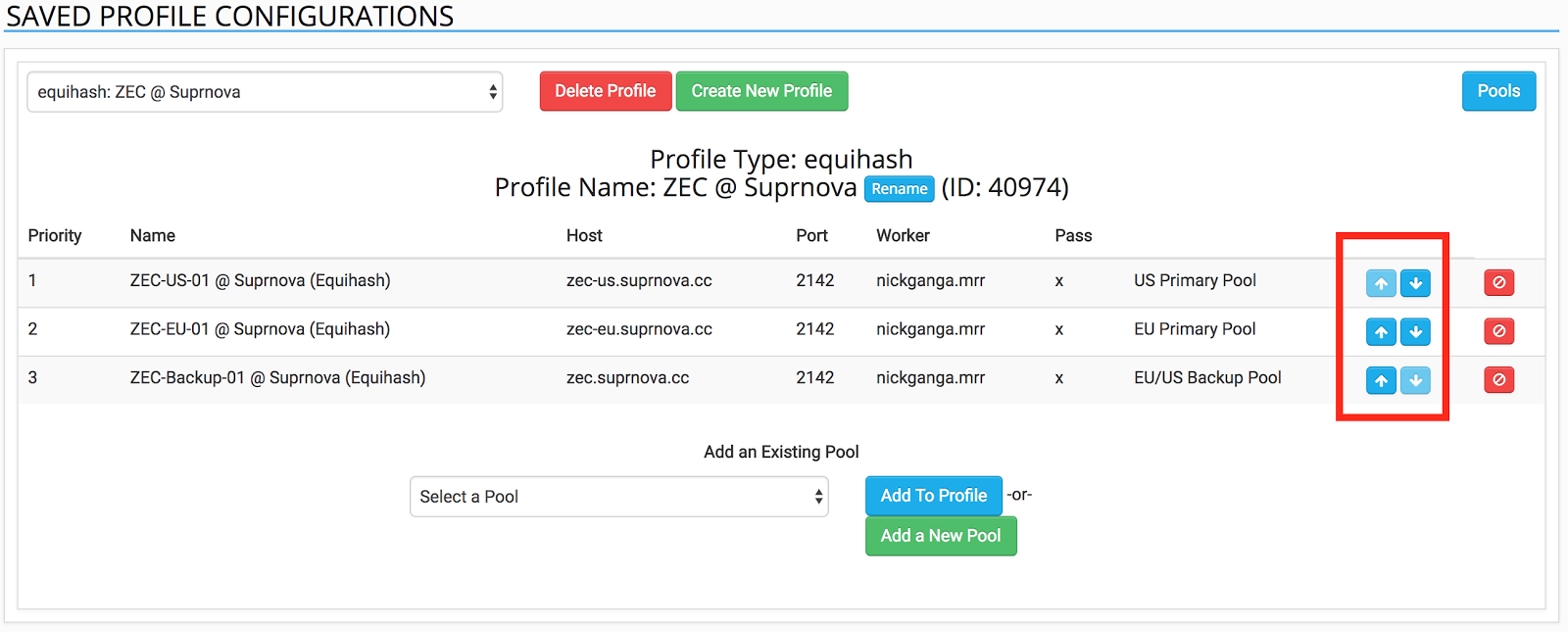
Congratulations, you have just created your first Saved Profile Configuration!
Additional Notes
-
Pool Configurations and Profile Configurations are can be used both my BUYERS and SELLERS.
-
Profile Configurations can contain pool profiles from different pool operators as long as the hashing algorithm is the same.
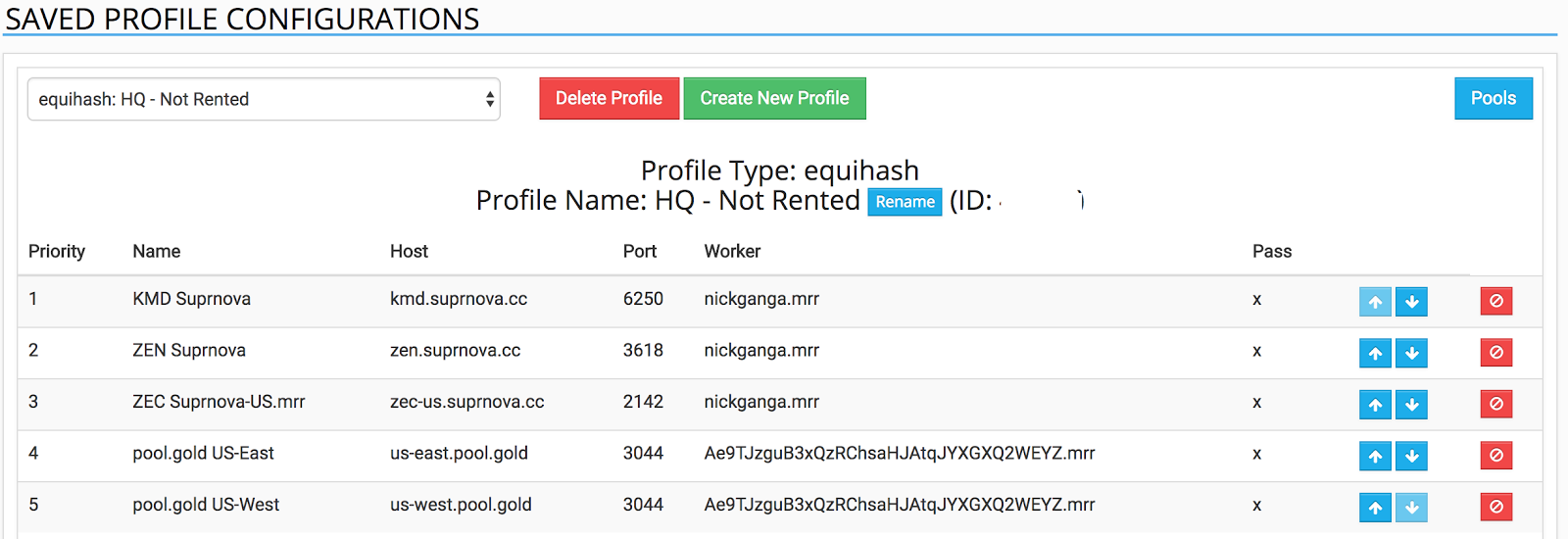
Supported Hashing Algorithms
-
Blake (2b)
-
Blake256-14-RND
-
Blake256-8-RND
-
Blake2S
-
Cryptonote/Cryptonight
-
Dagger-Hashimoto
-
Equihash
-
Groestl
-
HQM1725
-
LBRY
-
Lyra2RE
-
Lyra2REv2
-
Lyra2z
-
M7M
-
Myraid-Groestl
-
N-Scrypt
-
NeoScrypt
-
Nist5
-
Quark
-
QuBit
-
Scrypt
-
Scrypt-Jane
-
SHA256
-
SHA3-Keccak
-
Skunkhash
-
Timetravel10
-
Whirlpool
-
X11
-
X13
-
X14
-
X15
-
YeScrypt